
Monitoring is a core tool on Risika that keeps you automatically updated on any changes within your portfolio. In this article, we will go through how to create monitoring lists and add companies, ensuring you always have a complete overview of your customers and partners.
Overview
- Import via file (Excel/CSV)
- Directly from the Credit Check page
- Quick add via company search
Video Walkthrough
Want to get started quickly? Watch this short video for a step-by-step guide on how to set up your monitoring.
Creating Monitoring Lists
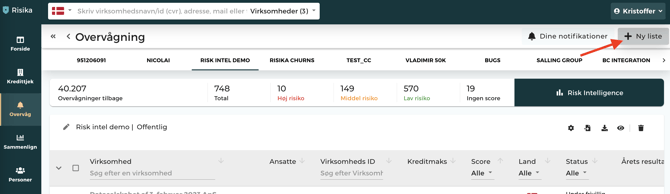
You will find your lists at the top of the monitoring page. If this is your first time using the feature, you will see a default list named "List". However, you can easily create multiple lists to organize your companies (e.g., by salesperson, region, or risk profile).
How to add a new list
- Click the "New list" button in the top right corner.
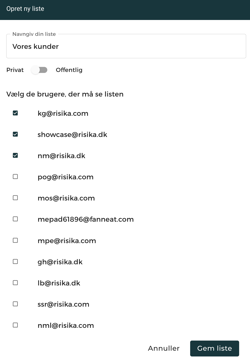
- Name your list and select the desired visibility:
- Public: Makes the list visible to all colleagues in your company.
- Private: The list is initially only visible to you, but you can later choose to share it with specific people.
Adding Companies to Monitoring
Once your list is ready, you can add companies in three different ways:
Import a List (Bulk Import)
If you have a large number of companies, you can import them all at once via an Excel or .csv file. The only requirement is that the file contains a column with VAT/CVR numbers.
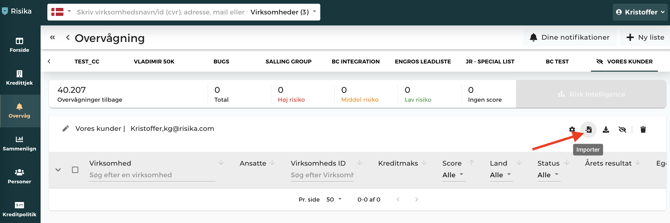
- Go to your list and click "Import".
- Choose whether to upload a file or enter the numbers manually.
- Match your data by selecting the column in your file that contains the VAT/CVR numbers.
- Review the overview before finishing. Here, you can also include internal IDs if you wish to import your own customer numbers.
The overview shows the file status:
- Total for import: Number of new companies being added.
- Duplicates: Companies already appearing on the list.
- Invalid IDs: Incorrect numbers that the system cannot read.
- Click the green button to complete the import.
Add Directly from Credit Check
While viewing a company profile, you can quickly add it to monitoring by clicking "Monitor Company" in the top right corner. Then, simply select which list it should be assigned to.

Add Directly from Search Results
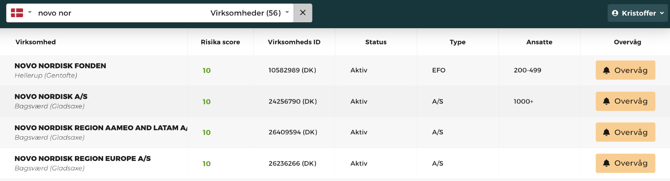
You don't need to open the profile to start monitoring. In your search results, you can click the yellow "Monitor" button next to the relevant company.
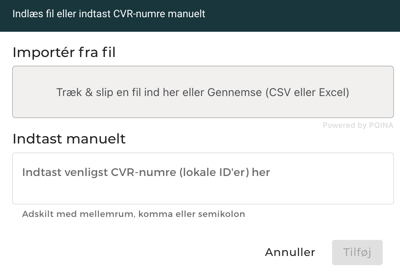
- When viewing your list, click on "Import".
- Choose whether you want to enter the VAT numbers (CVR) manually or import an Excel/CSV file.
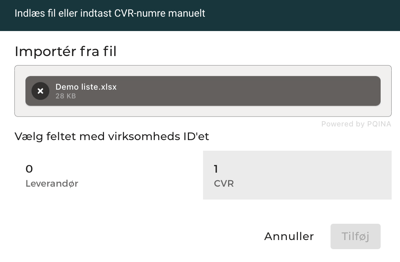
- Once you have added the file, select the column that contains the VAT numbers.
4. Before finalizing the import, you will see a summary overview. Here, you can also choose to include internal IDs if you wish to import your own customer numbers.
Oversigten viser status på filen:
The overview shows the status of the file:
-**Total for import: How many companies will be created.
-**Duplicates: Companies appearing multiple times in the list (these are typically filtered out).
-**Invalid IDs: VAT numbers with errors that the system cannot read.
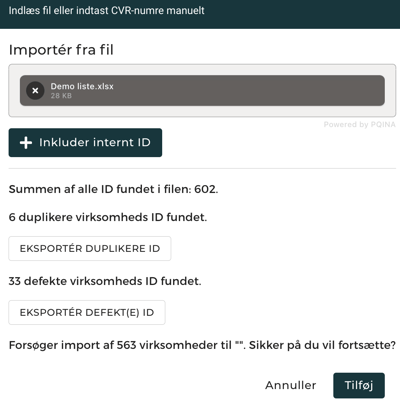
Click the green button to complete the import and add the companies to your list.
Need help?
Do you have questions about the setup, or are there other features you would like clarified? Our team is ready to assist you. Contact us at support@risika.com or write to us directly via the live chat.