
- Install the new app
- Set up Risika
- Activate the job queue entries for the new app
- Delete the old job queue entries
- Remove the old app
- Extension Management
- Uninstall Risika B2B Credit Rating
- Delete
- Check that it works
- For on-prem users
The old Risika app for Business Central, Risika B2B Credit Rating, will no longer be supported after the turn of the year 2026/2027. You therefore need to switch to the new app, Risika - Credit Insights for Business Central, before then.
This guide applies to Business Central cloud. If you run on-premise, see the bottom of the page.
If your own IT team or an external partner looks after your Business Central, please forward this guide to them.
Follow the steps in order. Keep the old app installed until steps 2 to 4 are complete. That way you still have a working Risika integration if anything needs fixing along the way.
1. Install the new app
Install Risika - Credit Insights for Business Central from Microsoft AppSource using this link:
Risika - Credit Insights for Business Central on Microsoft AppSource
Use the link rather than searching for "Risika". There may be several Risika apps with almost the same name, and the link takes you straight to the right one.
Sandbox and Production: We recommend installing in Sandbox first and then in Production. In Sandbox you can test the setup before it goes live.
Once the app is installed, you can see both apps under Extension Management:
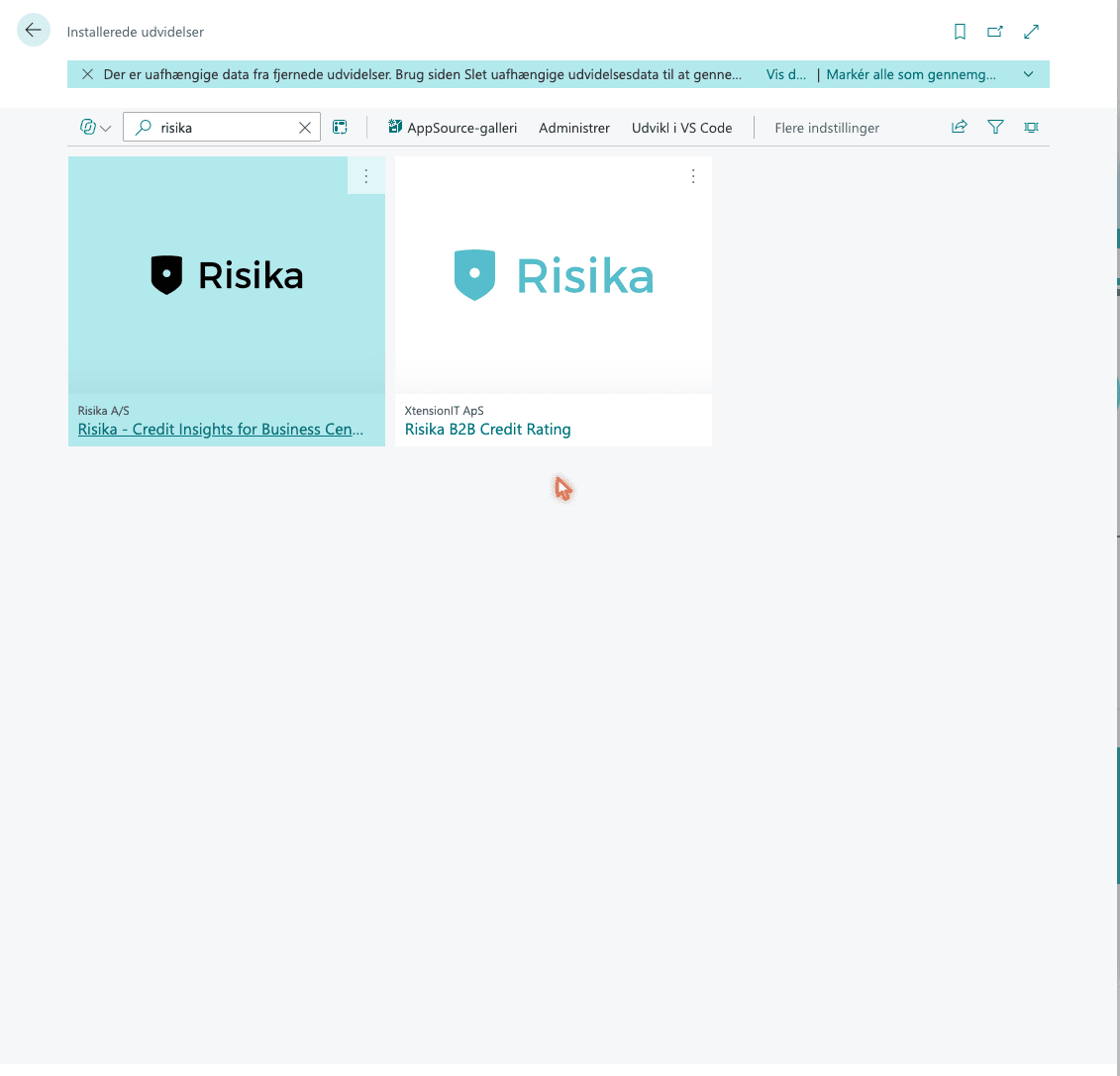
- Risika - Credit Insights for Business Central, publisher Risika A/S. This is the new one.
- Risika B2B Credit Rating, publisher XtensionIT ApS. This is the old one.
2. Set up Risika
The setup does not carry over from the old app. It has to be done again in the new one.
Search for Risika Setup. You will get two pages with the same name, one for each app:
- The new setup page is empty.
- The old setup page has your token and your current settings.
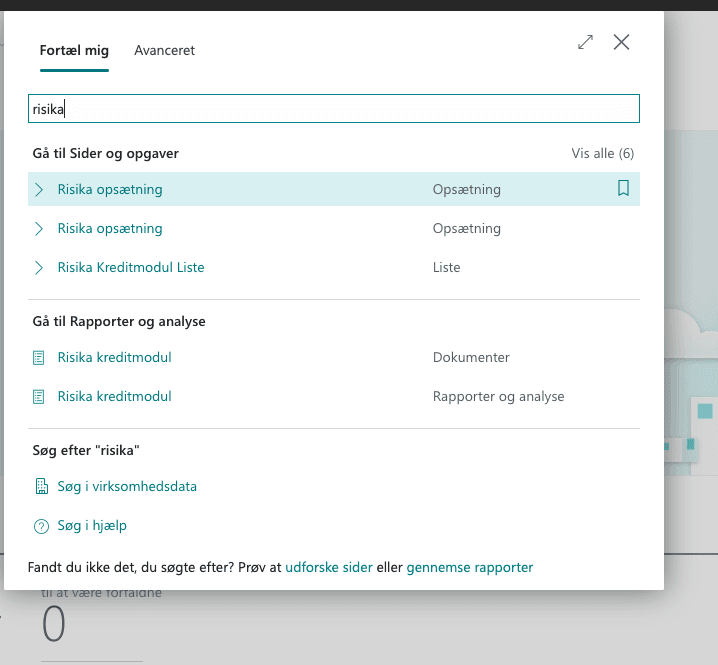
Open both pages and copy all fields from the old one to the new one, not just the token. The new app starts with different default values from your current setup, so any field that is not copied over changes how the integration works.
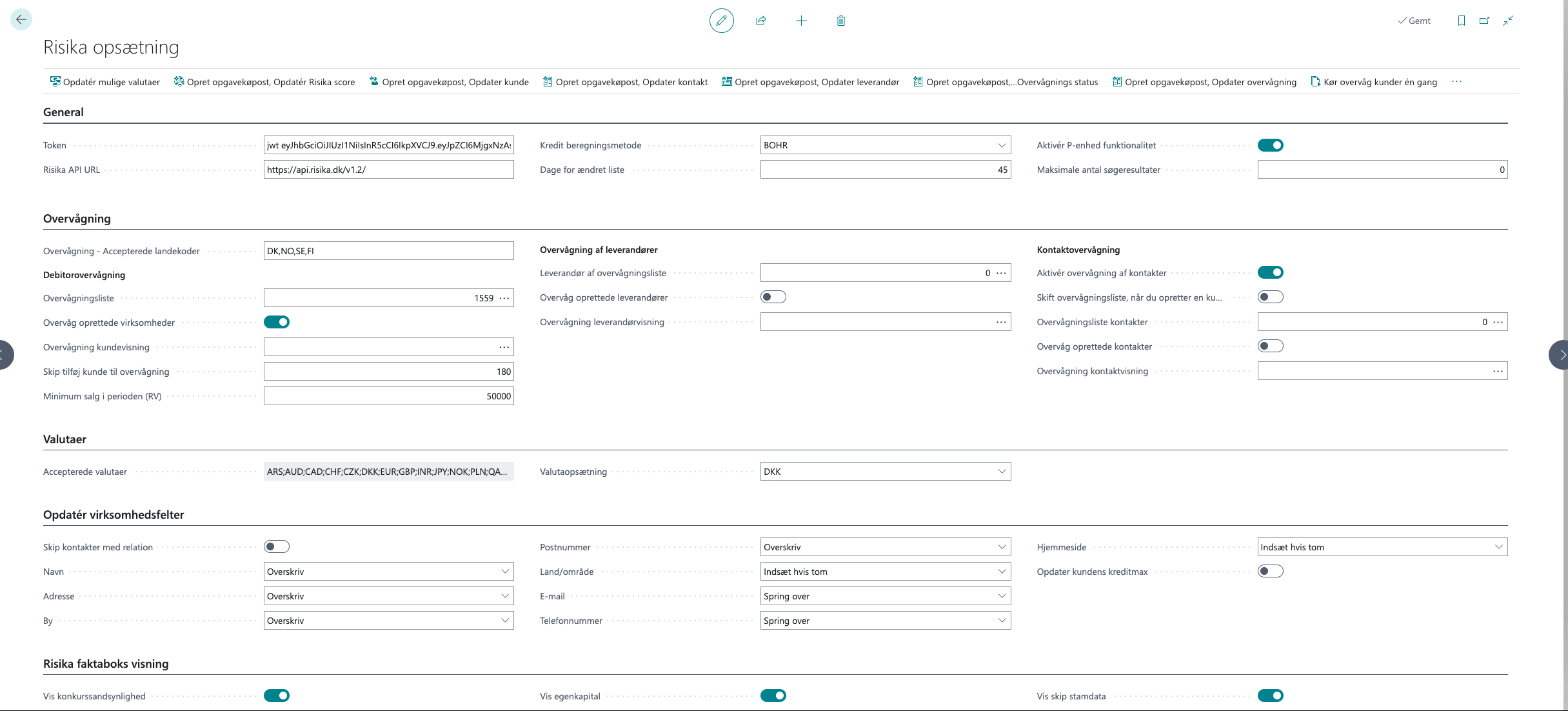
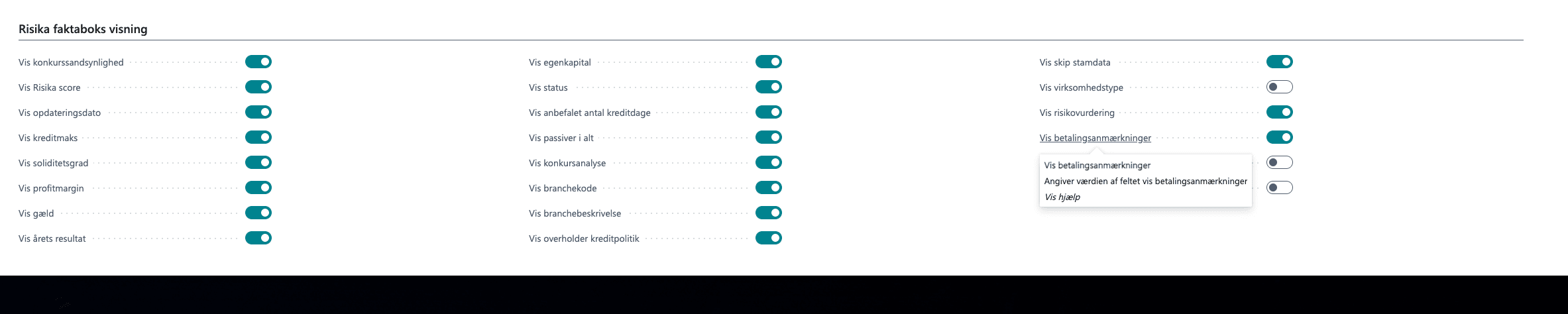
Pay particular attention to:
- Token: Copy it from the old setup page.
- Risika API URL: Not filled in automatically. Enter the same address as in the old setup: https://api.risika.dk/v1.2/
- Days for changed list: Sits in the right-hand column under General and is easy to miss. The new app starts at 0.
- Monitoring: Check the country codes, monitoring list, "Monitor created companies", "Skip adding customer to monitoring" and "Minimum sales in the period".
- Update company fields: In the new app, Name, Address, City and Post Code, among others, are set to "Skip" by default. If they are set to "Overwrite" in your old setup, they need to be set the same way in the new one. Otherwise your customers' names and addresses will no longer be updated.
- Currencies and Risika factbox display: Expand these sections and compare them as well.
3. Activate the job queue entries for the new app
The job queue entries fetch data from Risika at regular intervals. The new app has its own job queue entries.
At the top of the new setup page there are buttons to create them. Click the ones that match the job queue entries you had in the old app, typically:

- Create job queue entry, Update Risika score
- Create job queue entry, Update customer
4. Delete the old job queue entries
Search for Job Queue Entries. You can tell the old and the new Risika entries apart by the Object Caption column:
- Old: XTERISManagement (object ID 72150575)
- New: RSKMgt (object ID 73365575)
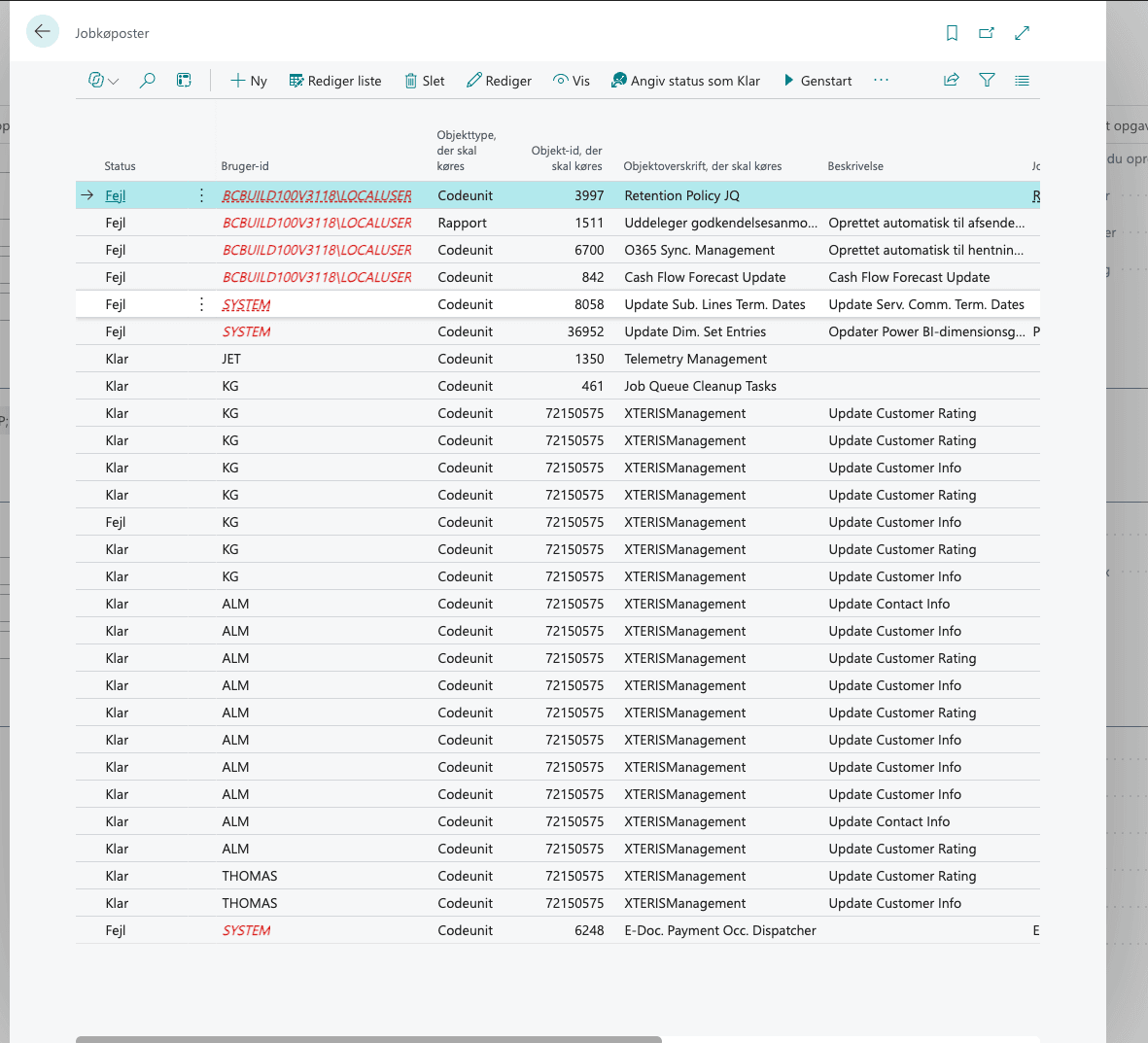
Select the old entries with XTERISManagement and click Delete. Leave the new ones in place. Otherwise two sets of updates will run side by side.
As long as both apps are installed, there are two buttons called "Risika changes" on the customer card. That is expected, and one of them disappears in the next step.
5. Remove the old app
Once steps 1 to 4 are complete, you can remove the old app.
Extension Management
In the top right corner you will find a search function. Search for "Extension Management".

Uninstall Risika B2B Credit Rating
Find Risika B2B Credit Rating from XtensionIT ApS. Click the three dots in the corner of the app and then "Uninstall". Make sure it is not the new app from Risika A/S that you remove.

Delete
Switch on "Delete Extension Data" and click "Uninstall". Confirm with "Yes".
This also deletes the old setup, so only do it once all fields have been copied to the new one.


6. Check that it works
Reload Business Central and open a customer. At the top of the customer card there is now only one button called "Risika changes", and on the right the Risika credit module factbox shows your Risika data.
You are now done.
If you or your partner need help along the way, just get in touch. We will of course help.
7. For on-prem users
If you run Business Central on-premise, you do not need to do anything for this migration.