
Credit Automator transforms your manual guidelines into intelligent, automated credit recommendations. By setting up your own rules, you ensure consistent credit assessments across the entire organization – lightning-fast and error-free.
###Table of Contents
Declined credit
Manual review
Approved credit
Video walkthrough
#You will find Credit Automator in the left-hand menu on the platform, located just above "Filtering".
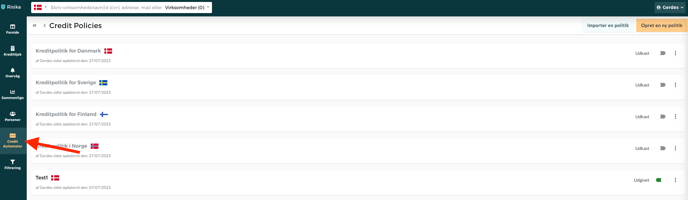
Build an intelligent credit policy
Build a credit policy in minutes
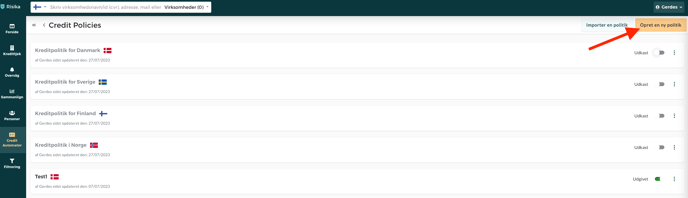
It is easy to get started. Click the yellow button "Create new policy" in the top right corner.
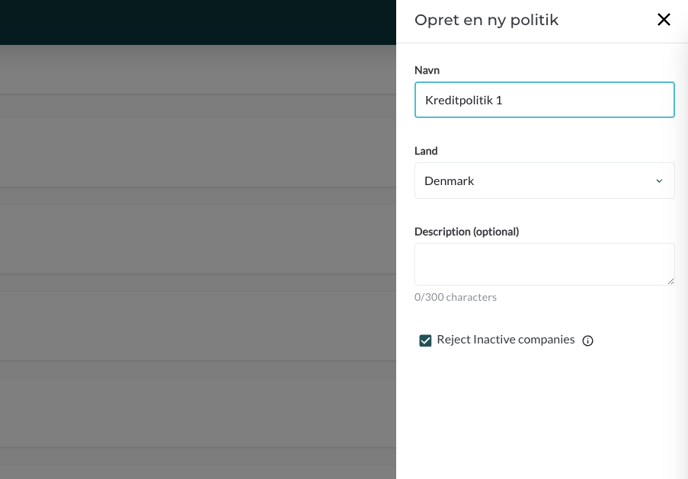
Name your policy and select the relevant country (Denmark, Sweden, Norway, or Finland – your credit policy is national and does not apply across borders). You can also choose whether the policy should automatically decline inactive companies from the start.
Now it's time to build
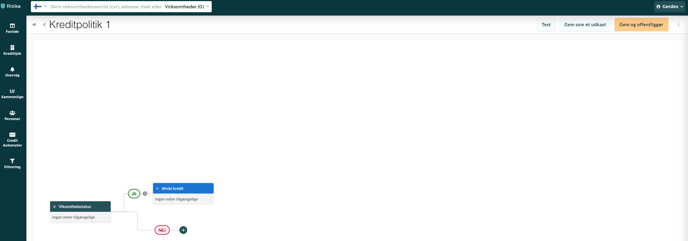
Add rules: Click the "+" icon to build your logic. You can combine a wealth of data points
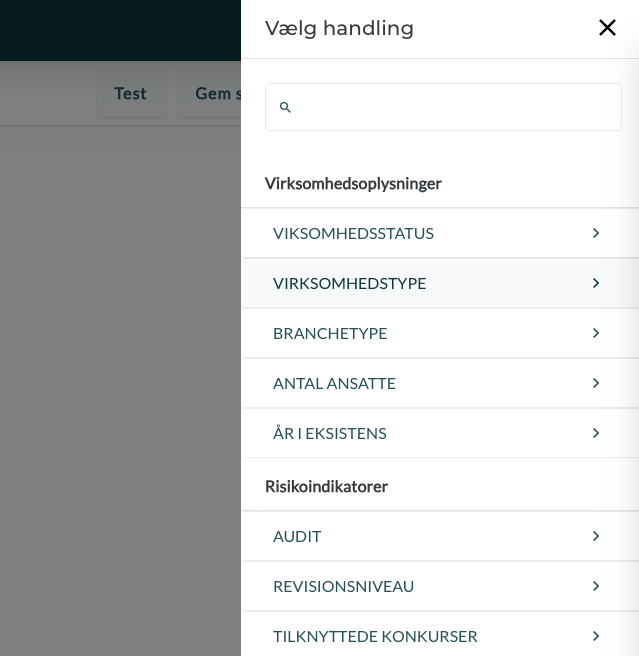
Rules
Risika Score & Equity: Base decisions on solid financial data.
Industry & Company Type: Exclude high-risk industries.
Specific country-specific rules: For example, related bankruptcies (DK) or payment defaults (NO).
Blacklists: Automate checks against your own lists of unwanted debtors.
Please note that there may be specific rules applicable to specific countries. For example, Denmark has audit levels, related bankruptcies, and prepaid phone connections, whereas Norway has payment defaults (betalingsanmærkninger).
You can explore all the different rules yourself when you start building your credit policy.
The three outcomes
From automation to control. When a company is processed through Credit Automator, it ends up in one of three categories:
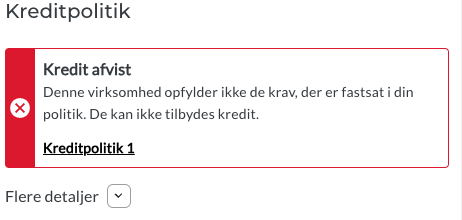
Declined credit
The company does not meet your minimum requirements. The salesperson is immediately notified that credit cannot be granted, saving time on unnecessary sales processes.
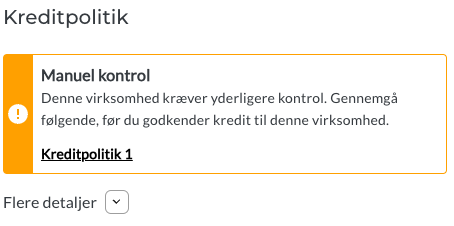
Manual review
The "gray area" where the system flags a company for closer inspection. This ensures that your credit managers only spend time on cases that actually require a human eye before a deal is made.
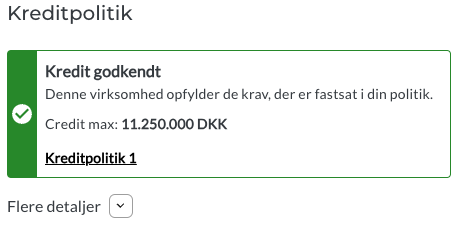
Approved credit
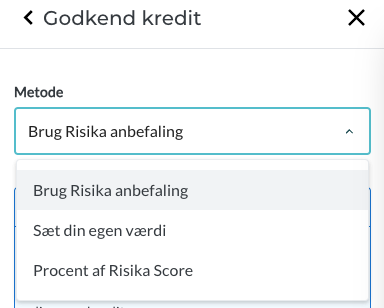
Everything is in order. You can choose how the credit limit should be calculated:
Use Risika's recommendation directly.
Set a percentage of Risika's recommendation (e.g., 50% for new customers).
Define your own fixed credit limits.
The finished credit policy - Make it active
Whether your policy is simple or complex, it is only effective once it is published. Click the yellow button in the right corner to activate it across the platform. It can either be relatively simple with a few rules or very complex—it is entirely up to you and your company's internal rules and policies.
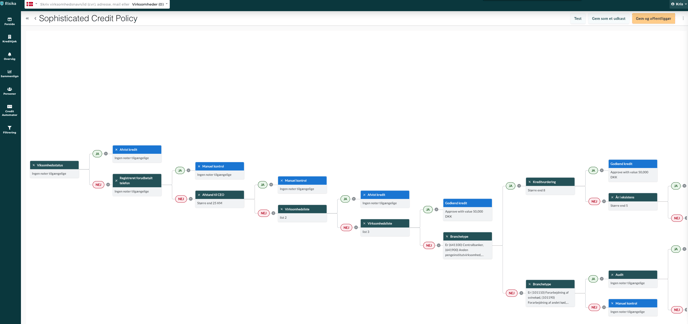
Once you have finished your credit policy, it must be published to become active on your platform. You do this by clicking the yellow button in the top right corner.
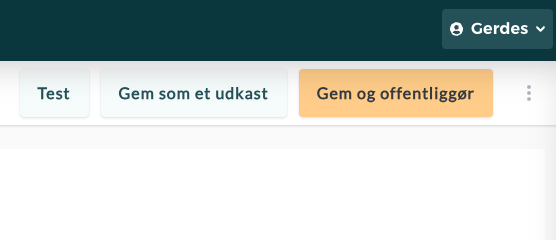
Smart features in the menu:
Test: Test your policy on a list of VAT/registration numbers before rolling it out.
Save as draft: Work on your rules over several sessions.
Export & Duplicate: Easily copy a successful policy from, for example, Denmark to Sweden.
Results on the companies
Below you can see how the three outcomes are presented to your users on the Credit Check page. It is visual, intuitive, and removes any doubt for your sales team.
Declined credit
Manual review
Approved credit
Video Walkthrough
Want to see Credit Automator in action? Watch our short walkthrough below:
Do you need help?
Do you have questions about the setup, or do you want sparring regarding your credit rules? We are ready to help your team get started.
Email: support@risika.com
Live chat: Find us directly in the bottom right corner of the website.