
Welcome to the user guide for Risika's integration to SuperOffice. Here you will get an overview of the integration's features, and at the bottom of the page, you will also find a video introduction.
Risika's integration to SuperOffice is easily set up via the SuperOffice AppStore and works for all companies in Denmark, Sweden, Norway, and Finland.
Overview
- Risk & credit information
- In-depth information on companies
- Risk & credit on multiple tabs
- Search and import new customers
- Risika Admin center
Risk & credit information
On the right side of your screen, you always have quick access to Risika data, right on the company you are working with. (Note: You can also display this box on pages other than the "Company" card itself – read more about this under point 3).
In this box, you get a quick overview of:
The company's master data
Risika Score and specific credit recommendations
The historical development of the Risika Score
Whether the customer complies with your internal credit policy
The company's key highlights and warning signals
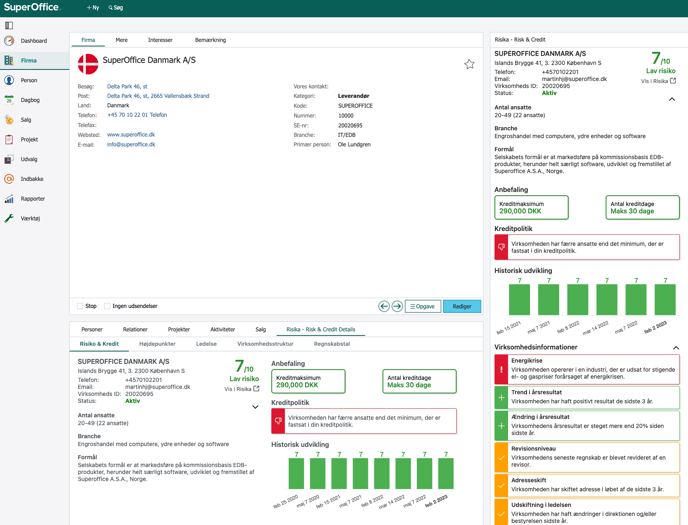
If you want to dive deeper into the numbers, you can click the "Show in Risika" button. This opens the company's full profile directly on the Risika platform.
In-depth information on companies
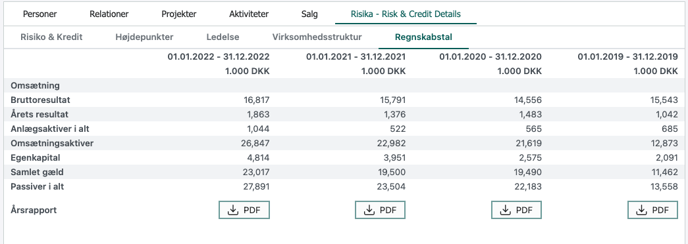
At the bottom of your SuperOffice window, you will find the expanded module. Here you have access to even more details than in the small box on the right side.
Here you can see, among other things:
Master data, Risika Score, recommendations, and credit policy status
Company highlights (positive and negative indicators)
Information about the management
The company's corporate structure
Key financial figures
Risk & credit on multiple tabs
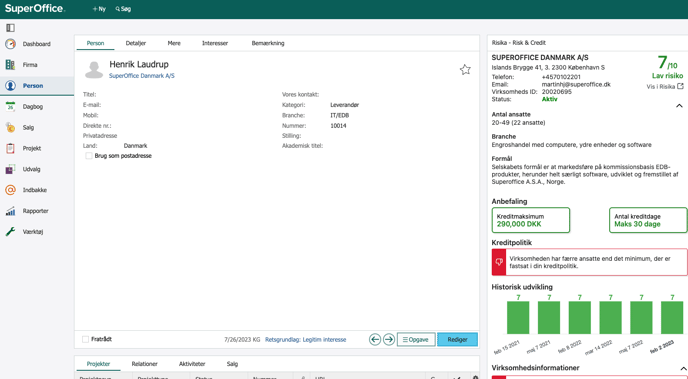
You don't have to be on the "Company" page to benefit from Risika's data. You can choose to display the information about your lead on virtually all other pages in SuperOffice.
The image below shows, for example, what it looks like on the "Persons" page.
You can activate the Risika information on the following pages:
Company
Persons
Diary
Sale
Project
Search and import new customers
With the Risika Search function, you can easily prospect, find new leads, and import them directly into SuperOffice with all master data pre-filled.
The search function
Start by selecting which country you want to search in by clicking the flag icon. Then you can enter the name of the company you are looking for.
In the result list, you are immediately presented with important information about the found companies – including their Risika Score, whether they comply with your credit policy, company status, number of employees, and much more.

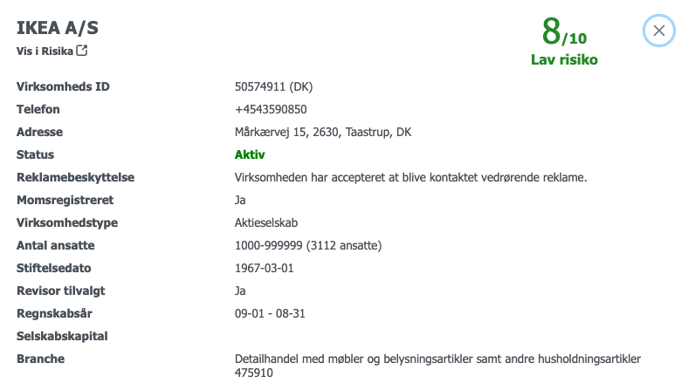
The Risika shield
Do you want to know more about a company before importing it? Click the small blue Risika shield next to the name to unfold extra information. You can also click "Show in Risika" to open the full profile on our platform.
Avoid duplicates
Before you import a new company, the system helps you check if you already have it in SuperOffice.
If the company has already been created, there will be a small "Company" icon next to the name on the list.
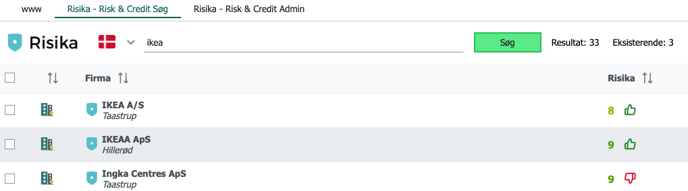
In some cases, the system might be unsure whether a company on the list is the same as one you already have in the system. If this happens, a small yellow exclamation mark is displayed.
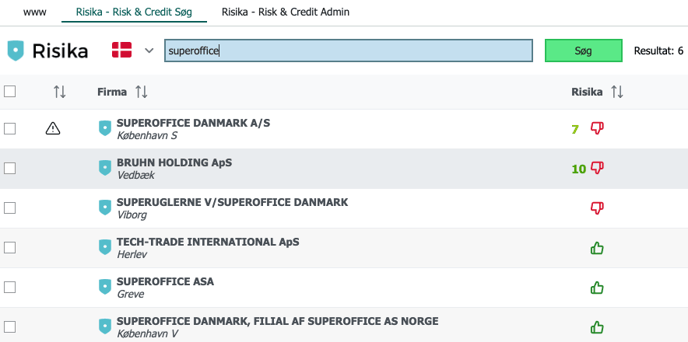
If you click on the exclamation mark, you can see the data causing the doubt and manually choose to "match" (link) the companies together if they are identical. This ensures that you keep your CRM clean of duplicates.

If there are no icons next to the company, the coast is clear, and you can safely import it.
Import companies
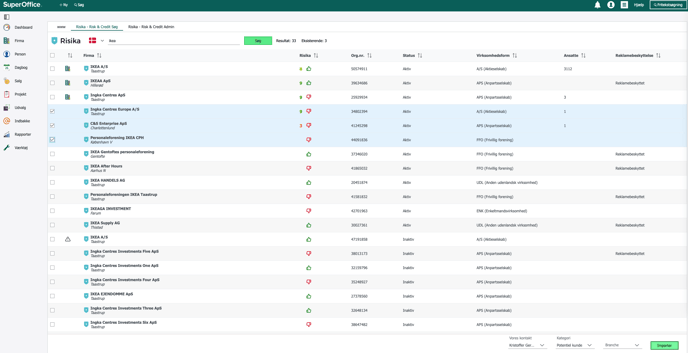
To import one or more companies, simply check the box next to them on the list.
At the bottom of the screen, you can specify who should be the contact person, which category the customer should be placed in, and which industry they belong to.
Click "Import". The system will now work in the background, and you will receive a confirmation message when the companies have been created in your SuperOffice. They will now also have the small "Company" icon next to them on the search list.
Risika Admin center
If you have "Superadmin" rights, you have access to the Risika Admin center. Here you can customize the integration to fit your exact needs and workflows.
You can read much more about the setup options in our separate installation guide: Read the guide here: Guide
Video walkthrough
Do you want to see the integration in action? Take a look at the video below.
Do you need help?
Are you left with questions about the integration, or is there anything else we can help with? Our team is ready.
You are always welcome to contact us:
- E-mail: Write to us at support@risika.com
- Live chat: You can easily reach us via the chat, which you will always find in the bottom right corner of our platform.