
With the Risika integration for Business Central (BC), you can automate your credit management and ensure that your master data is always accurate and updated. This guide will help you leverage the integration’s full potential, enabling you to make quicker and more well-informed decisions. Find the guide here: https://help.risika.dk/implementering-of-bc
Note: The integration supports specific BC versions. If you haven't read our implementation guide yet, we recommend starting there to ensure a correct basic setup.
On-premise: Supports versions BC13-25.
Cloud: Always supports the latest versions.
Overview
- Auto-fill via VAT/CVR number
- Risika Company Search
Risika Credit Module
You will find the Risika module as an integrated FactBox on the right side of the screen in Business Central. The module is available for customers, vendors, and contacts, providing an instant financial overview without needing to leave the system.
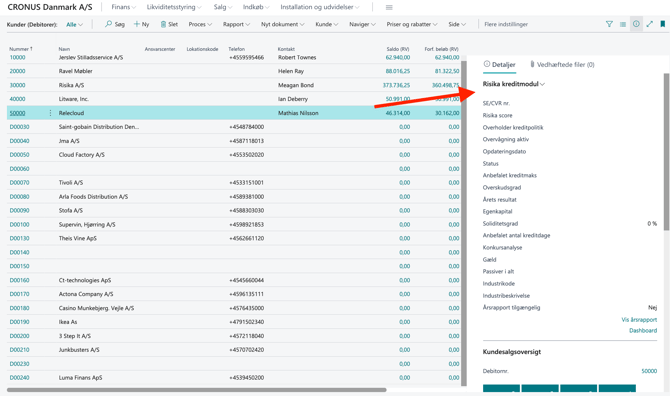
Creating Customers and Vendors
You can easily create new relations in Business Central using two methods:
Auto-fill via VAT/CVR number: Simply enter the company’s VAT/CVR number on a new card. With one click, the system retrieves all relevant master data and financial key figures.
Risika Company Search: Search directly in BC by name, address, or VAT number. Once you’ve found the right company, you can instantly create it as a customer, vendor, or contact.
How to use Auto-fill:
- Click "New" in the top menu.
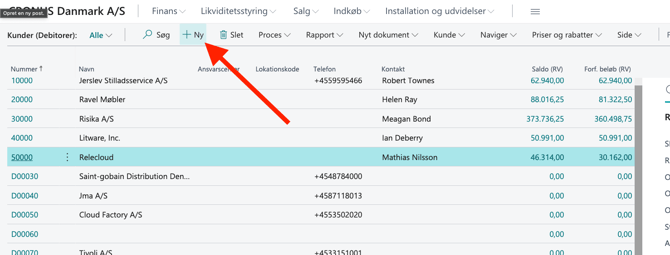
- Select your desired template.
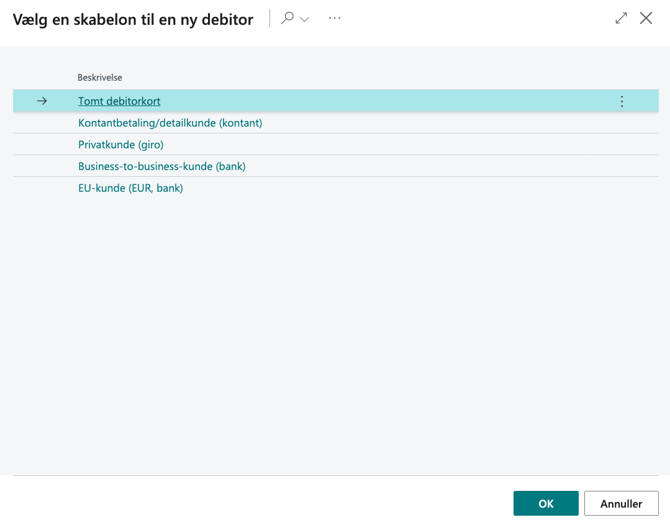
- Enter the VAT number in the "VAT Registration No." field.
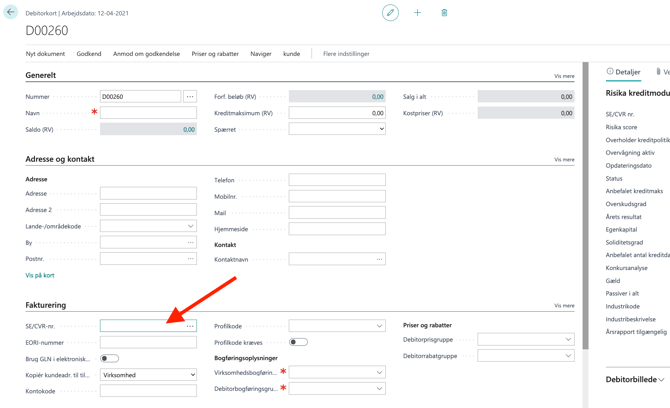
- Open the Risika Credit Module on the right and select Update Company and/or Get Credit Rating.
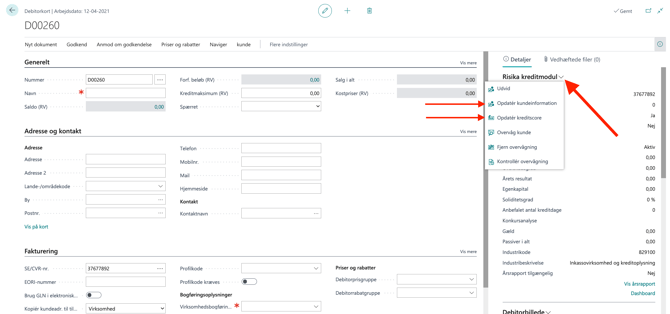
Activate the update via the FactBox – the system will then automatically fill in all details.
Risika Company Search
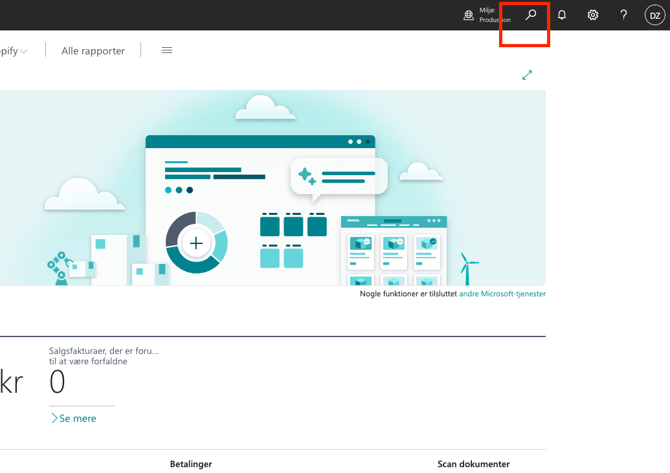
- Click the magnifying glass icon (Search) in BC.
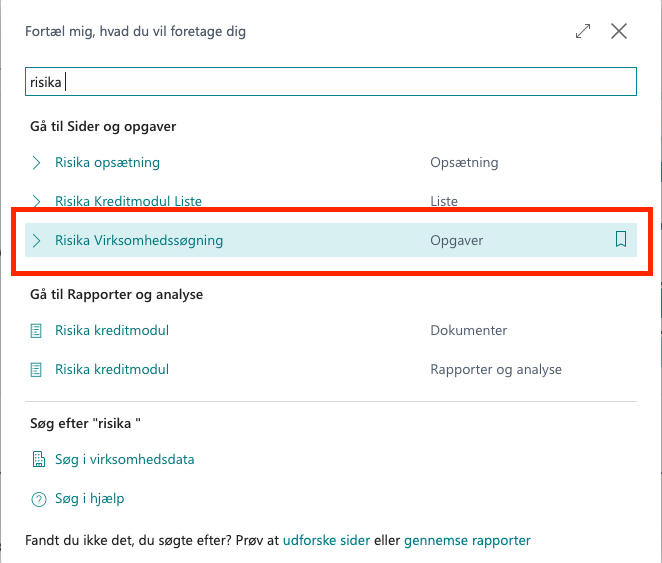
- Search for Risika Company Search.
- Search for the company using name, address, or VAT number.
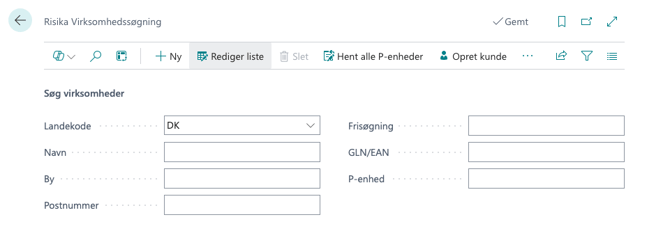
- Select the correct profile and press Create as Customer, Vendor, or Contact.
Company Monitoring
Protect your business from losses by staying informed about changes among your partners. You can receive real-time notifications for critical events, such as changed credit scores, new financial statements, or increased bankruptcy risk.
The integration allows for:
- Manual Monitoring: Add specific companies directly from their card in BC.
- Automatic Monitoring: Set up intelligent rules so that, for example, all new customers are automatically monitored.
You decide whether you want to receive email notifications so you can act proactively on important changes. Read more about setting up monitoring here: https://help.risika.dk/monitoring
Automatic Data Updates
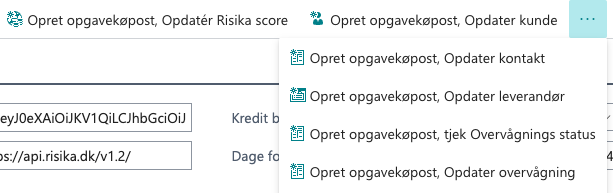
By using Business Central’s Job Queue Entries, you can automate the maintenance of your data. This ensures your database always reflects reality without manual effort.
You can automate the following:
Master Data: Continuous updates of names, addresses, and contact information.
Risika Score: Automatic synchronization of credit risk and key figures.
Status Check: Synchronization of monitoring status between BC and Risika.
Risika Setup
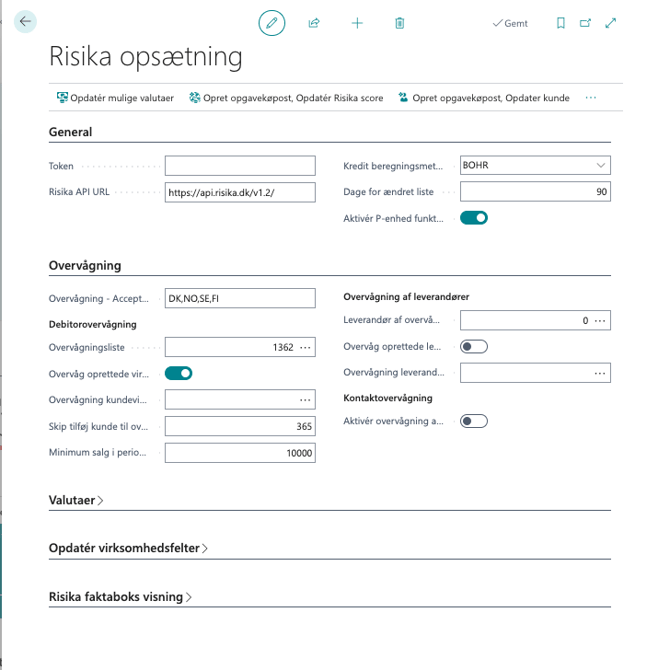
In the setup menu, you can tailor the integration to your specific workflows:
General: Manage API tokens and URL settings (see details in the implementation guide).
Monitoring: Choose which lists companies should be archived on and set amount limits (e.g., only monitor customers with a balance over 50,000).
Automation: Define which countries or posting groups should be automatically monitored.
Field Management: You decide which fields Risika is allowed to update. You can choose:
Skip (keep your own data).
Insert if empty(only fill in missing info).
Overwrite (always let Risika provide the latest data)).
Credit Limit: Choose whether Risika’s recommended credit limit should automatically transfer to BC.
General Setup
We covered these three fields in the implementation guide: "Token, Risika API URL, and Credit Calculation Method https://help.risika.dk/implementering-af-bc
Monitoring Settings
Monitoring - Accept - Indicates which countries monitoring is available for.
Monitoring List - Choose which list your monitored companies should be added to.
Monitor Created Companies - Enable to automatically monitor newly created companies.
Monitor Customer View - Select specific parameters in BC, such as customer posting groups, to be monitored.
Skip Add Customer to Monitoring - Set a specific number of days. If there has been sales activity within this period, the company is added to monitoring.
Minimum Sales in Period - Set a threshold so only customers with sales above X are monitored.
Update Company Fields
Skip Contacts with Relation - Skips contacts already linked to a company.
Update Customer Credit Limit - If enabled, Risika’s recommendation will overwrite the BC credit limit. If disabled, you can maintain your own limit while seeing Risika’s recommendation.
Remaining Fields - Choose for each master data field whether to "Skip, Insert if empty, or Overwrite."
Risika FactBox View
Customize which fields are displayed in the credit module FactBox, so you only see the information relevant to your work.
Video Guide
Would you like a visual walkthrough? Watch our video below, which demonstrates daily use and key configurations.
Need Help?
We are ready to help you get started or answer questions about specific features.
Email: support@risika.com
Live Chat: Contact us via the chat icon at risika.dk.