
To create or remove users, you need Administrator rights. You can easily check your current status by clicking on your name in the top right corner; your assigned role will be displayed here.
Note: There are two different roles on the platform –** User** or Admin.
Overview
User Management
To access User Management, where you can manage your accounts, click on your name in the top right corner and select Settings.
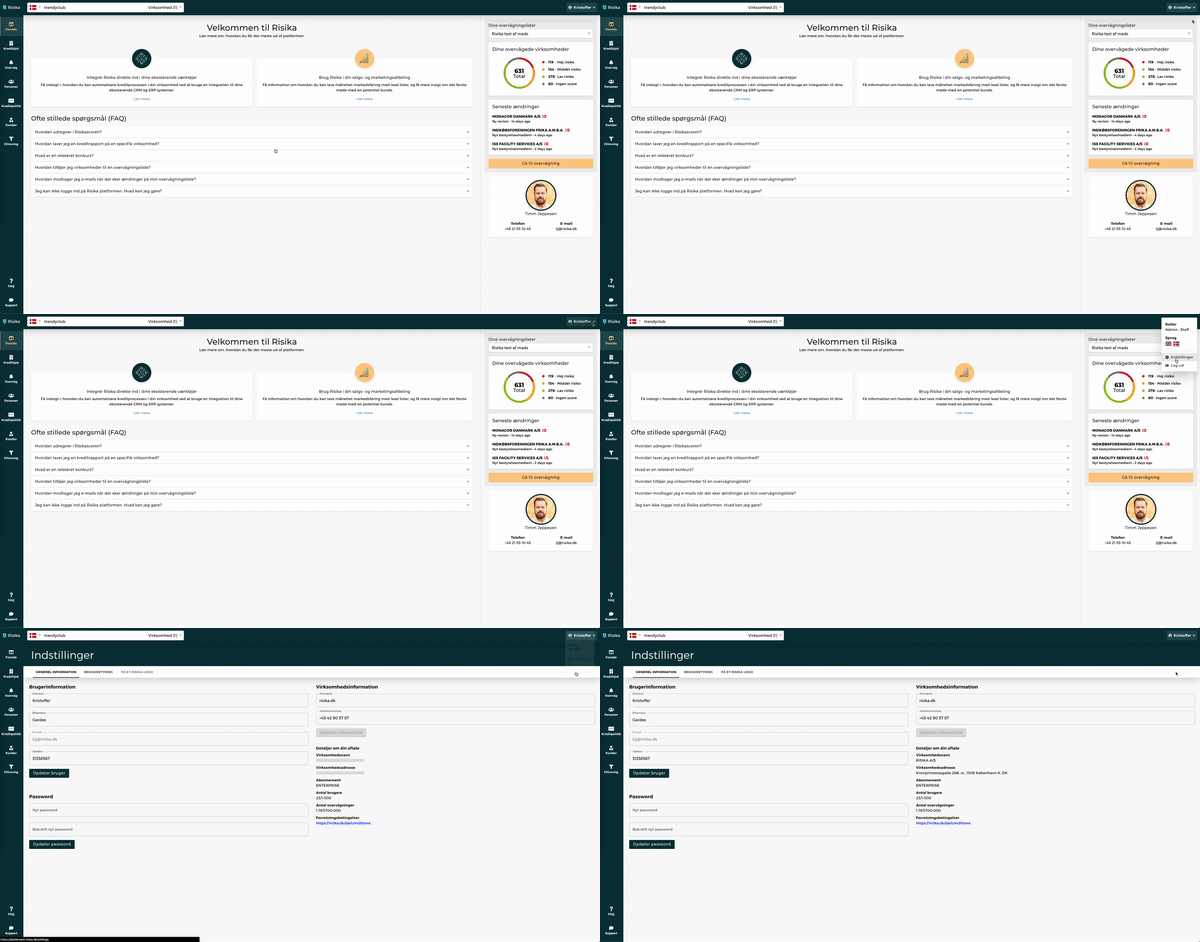
You will now land on the General Information page, where you can edit your own details. To manage colleagues, select the User Management tab in the menu.
Adding a user
You can create a new user by clicking the small plus icon (+) on the right side.
Here, you enter the user's name and email address, and select whether they should be assigned the role of User or Admin.
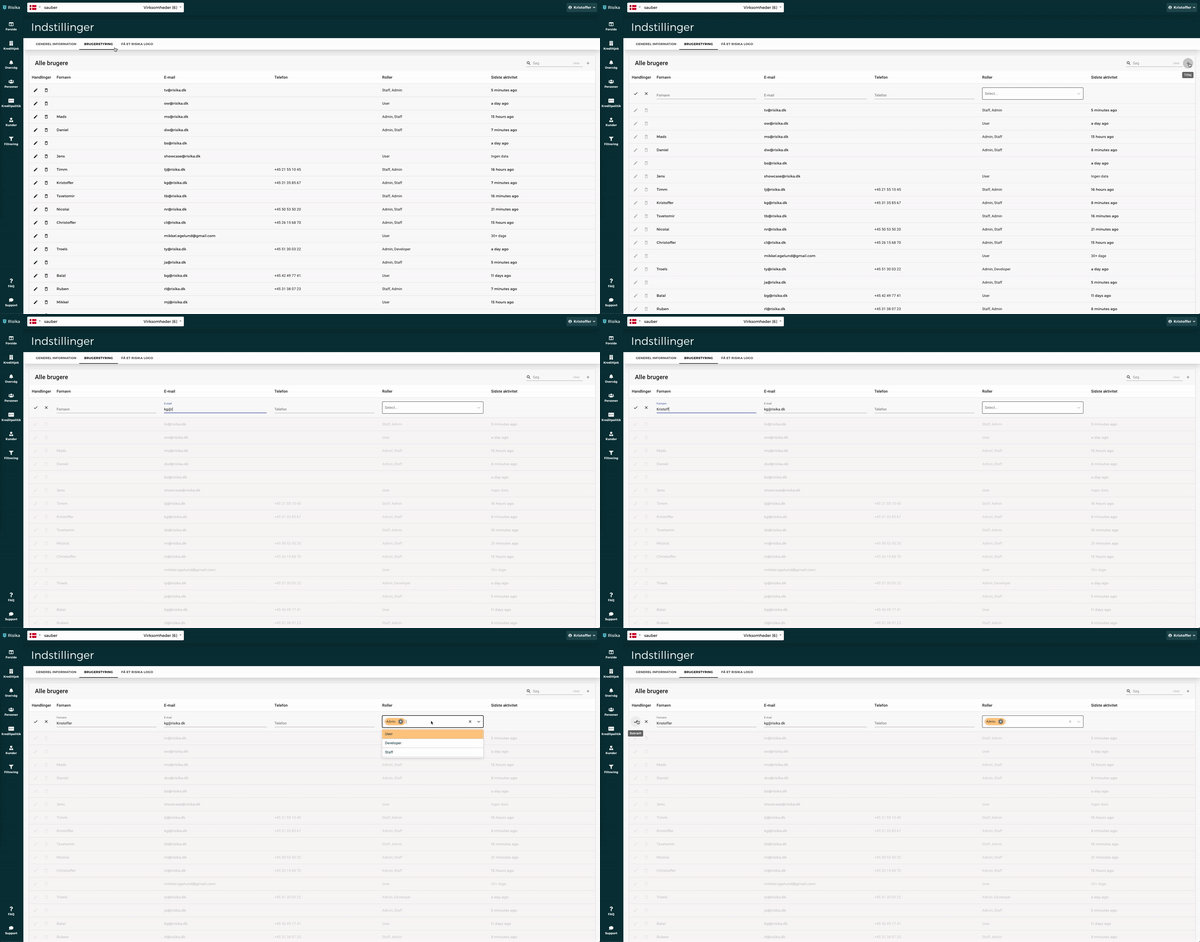
Tip!: Always remember to fill in the user's name. This ensures a better user experience and makes it easier to identify individual users in the overview. It is important to remember to add the user's name, as this provides a better user experience.
Deleting a user
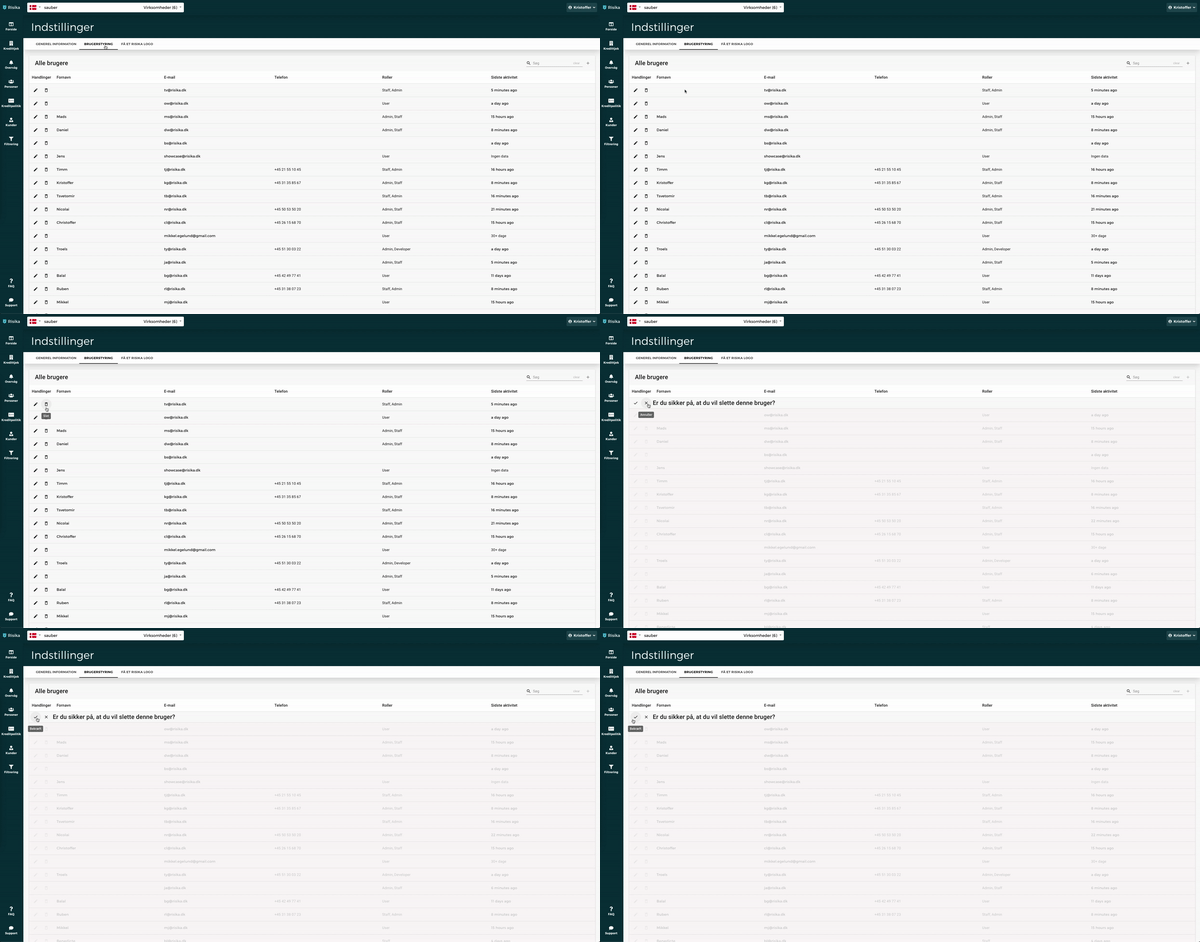
If you wish to remove a user, simply click the trash can icon next to the relevant person. Then, just confirm your choice to complete the deletion.
Need help?
Are you ready to take the next step in optimizing your credit process, or do you need technical sparring for your current solution? We are always ready to help you move forward.
**Write to us: **You are always welcome to contact us directly at contact@risika.com.
Book a walkthrough: We are happy to provide a live demo showing how our data can be tailored exactly to your workflows.